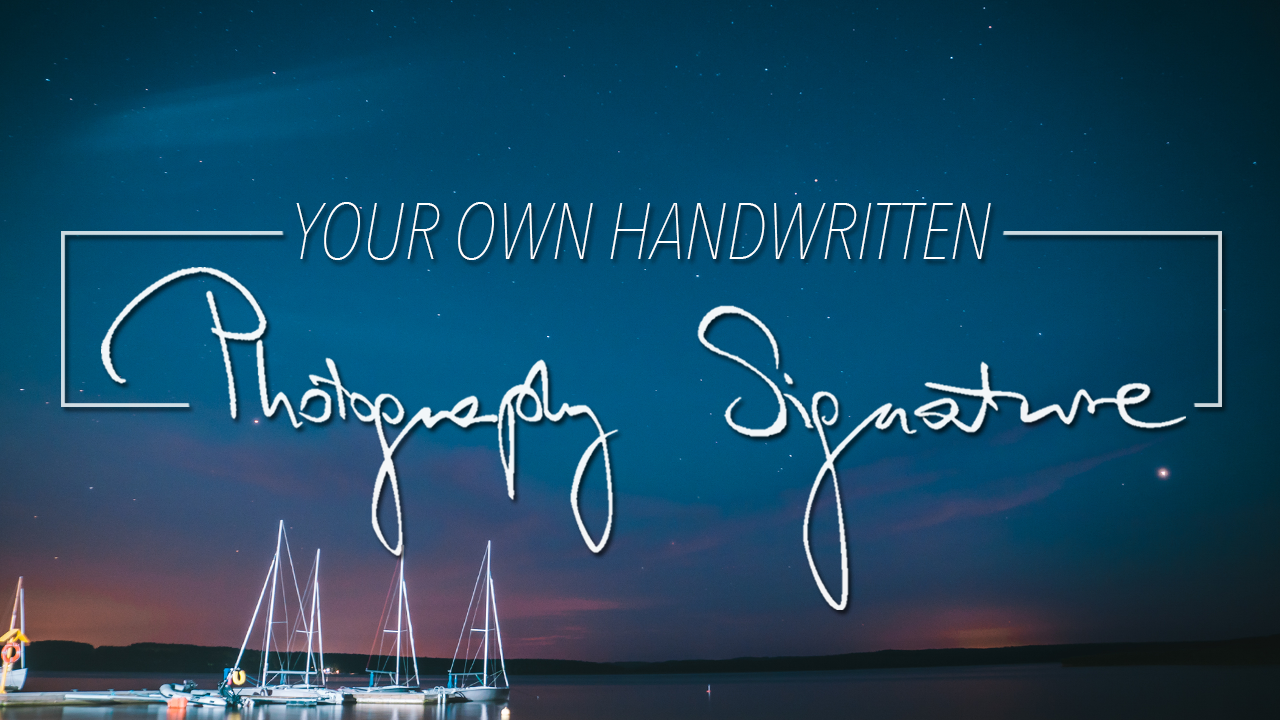
There is a lot of articles or videos on youtube about making your own signature and most of them are going something like this: open dafont.com choose font, install font, open photoshop, choose the font that you just installed, put your name and you’re done! Here is your own ORIGINAL signature… srsly? First of all anyone can do it so anyone can have signature just like yours, that’s very professional… for the second did you know that most of them are „free for personal use”? Personal means not commercial, but the solution seems to be easy, look for 100% free font or just buy one, but I have a better idea. What would you say about signature that is 100% free, original, unique and at the same time easy to do? Read carefully because I will show you how to create your signature using your own handwrite.
Today I will show you how to do a signature using your own personal font. Actually it is pretty easy, let’s start with tools that you will need: a pen, a piece of paper, phone (or any kind of camera) and some software to work on. For today I’ll use photoshop. First of all I am not a photoshop master so probably there could be much easy way to do it as well. Now let’s get to work.
Grab your pen and do your sign on the piece of paper. Now it’s time for you to feel like Britney Spears giving her autographs so be creative! When you’re satisfied with how this looks on the paper it’s time for the next step which is putting the sign into your computer. Simply grab the phone and take a photo of your sign and email it to yourself or just copy it to your computer.
Now here comes the hard part- making the signature digital. First, create a new photoshop project, then import your image. Select the first letter using the pen selection tool. When you finish, just click on the selection button, then hit okay.
Next, create a new layer and then add layer mask – and that’s it.
Now repeat the process on all of the letters. You don’t have to do the letters one by one. You can also do the whole signature on one mask, but I did them separately so it would be easier to edit later. The advantage of having all of the letters separately is that you can move them around however you want.
When you’re done selecting your signature, you can paint the letters on whatever color you like and also add some shadow behind it. That’s pretty much it.
Now you can merge the layers together, export, and add it to your photos or a business card or a lightroom watermark. Now you can enjoy your own, truly unique signature. The coolest part is that it’s your own handwriting, so everyone doing the same thing will get different results. I hope that you enjoyed the process.